Board Card Conditions
With task conditions you can move cards or set the color when specific task values are matched.
We are going to create an example that will move the card to another list. We will assume the following task:

Condition group name#
This is the name used to identify the condition group to you, it does not have any technical meaning. You can name it whatever you want.
Task Group name#
This field must match the task name that you configured for your task. In the example image above the task is called "Hardware Test".
Task group selected option#
This is the technical field ("pass" and "fail" in the example image above) that must be selected for this condition to execute.
The example below will move the card to the "Complete" list if the engineer selected the option "Check if the hardware test passed" (with identifier: "pass").
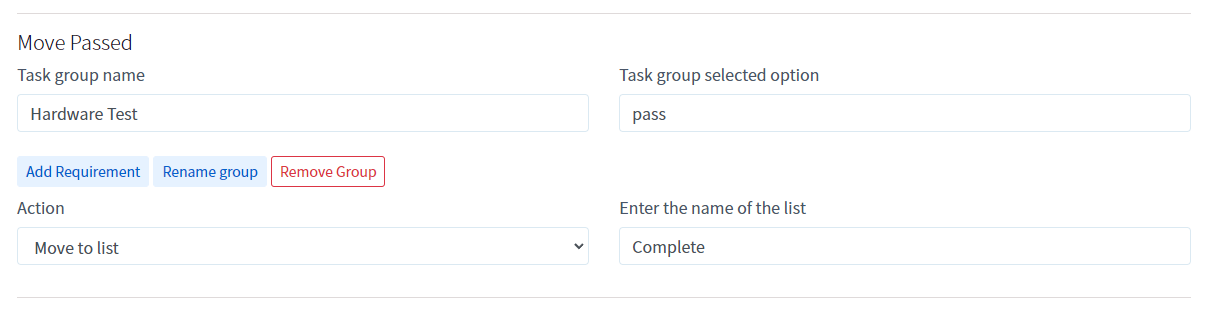 You can also have multiple requirements, for example, to only move it to complete if multiple tasks are set to a specific option.
Important information#
Requirements#
All required fields must be met, if you have requirement that the "hardware test" task must be set to pass, and another task (e.g. "software test") must also pass, then it will only run if both of those match what you configured.
Order of execution#
A specific action can only happen once, only the first one that passes all requirements will execute. For example, if you create two condition groups, one will set the color to green when "pass" is selected for "Hardware test" and you create another one that will change it to red with the same condition, then only the first one will match and the color will thus be set to green.